Using Git
This section will provide some quick pointers on how to use Git on the command line. It will not go into too much detail, since the available functionality of Git is too vast to cover it here. When in doubt, Google will always be your friend.
Setting up an existing project
Let’s assume a typical use case: a Git repository has been set up (on GitLab for example) for a website project. In order to work on this project, you need to check out the repository, set up your web server and install necessary dependencies.
To check out a project, we recommend to create an empty folder first. This is optional, since Git will simply create a folder with the project’s name automatically, if none give - but it gives you better control over where the project will be located.
$ mkdir example-project
Then switch into the project’s directory.
$ cd example-project
Visit the project’s repository in your web browser. Within GitLab, there will be a “clone” button at the top right of the project’s home page. Copy the SSH url and use it for the git clone command:
$ git clone git@gitlab.com:inspiredminds/example-project.git .
The . at the end signifies that the repository should be cloned into the current directory. Otherwise Git will create a subfolder, as previously mentioned.
Developing
Before starting your own development, you should probably “pull” the most recent code base from the repository.
$ git pull origin master
This instructs Git to pull the most recent code from the master branch of the origin stream. If origin is your default stream, then you can also simply use git pull.
After you have made some changes to the code and you want to commit all those changes in to the remote master branch of the repository, add the changes to be committed:
$ git add --all
Then you can instruct Git to create a commit:
$ git commit -m "my commit message"
Try to always use a meaningful commit message. Now that the changes are staged to be committed, you can finally “push” them to the remote branch:
$ git push origin master
Or just git push if the origin stream is the default.
Branching
Depending on the project, you might need to use different branches, or create your own branch just for your own changes to the code. To swith to an existing branch that has already been fetched, use the following command:
$ git checkout some-branch
To create a new branch use the following:
$ git checkout -b my-new-branch
If you had any unstaged code changes before creating a new branch, the changes will be automatically transferred to the new branch.
When things go wrong
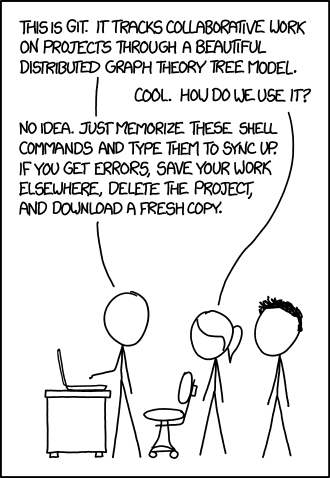
It is not uncommon for things to go wrong, especially when you are still unfamiliar with Git - or at least unfamiliar with using Git on the command line. Consult your colleages when you experience problems. There is always the last resort as well: